![HRPS Logo1.png]](https://knowledgebase.hrperformancesolutions.net/hs-fs/hubfs/HRPS%20Logo1.png?height=50&name=HRPS%20Logo1.png)
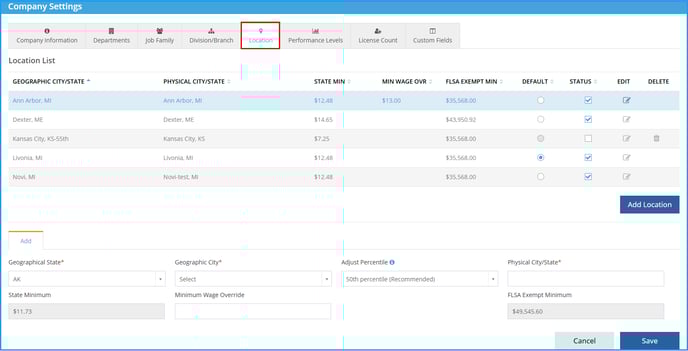
Company Master-->Company Settings-->Location:
- Click icon to select Default.
- Check Status box to indicate Location is active.
-
To edit, select the edit pencil icon. Click Save. Note: Changing the geographical location will change all employees' salary ranges attached to that location.
-
To delete, select the delete icon. Select Confirm. Note: Location cannot be deleted if an employee is currently assigned to that location in Employee Maintenance or in a current year Merit Plan.
-
To add, select the add Location icon. Select the Geographical State, select the Geographic City. If desired, adjust percentile, modify the Physical City/State. Click Save.
-
To override minimum wage, enter new minimum wage dollar value in field. Click Save.
See below for a video of these instructions.