![HRPS Logo1.png]](https://knowledgebase.hrperformancesolutions.net/hs-fs/hubfs/HRPS%20Logo1.png?height=50&name=HRPS%20Logo1.png)
NOTE
There are two ways to create positions:
1. Create a position from a master position (explained in this article)
2. Create a position from scratch (explained in How to Create a Position from Scratch)
NOTE
Competencies must first be created in order for them to be available to assign to positions. See related articles for instructions on creating Competencies.
To Create a Position from a Master Position
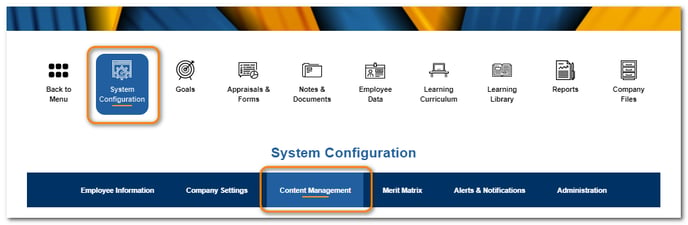
Click System Configuration then Content Management.
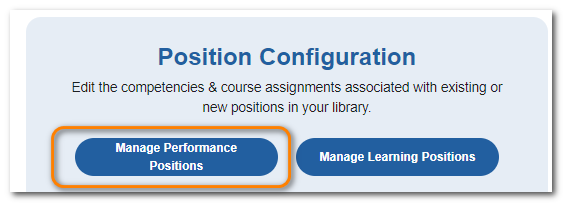
From Position Configuration, click Manage Performance Positions.
Click the Master radio button.
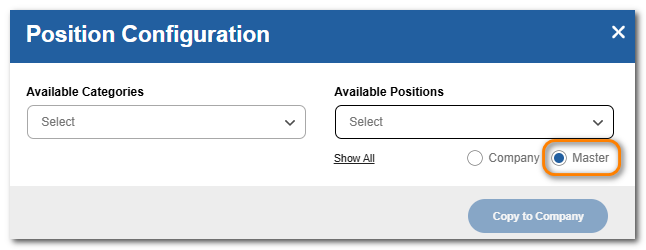
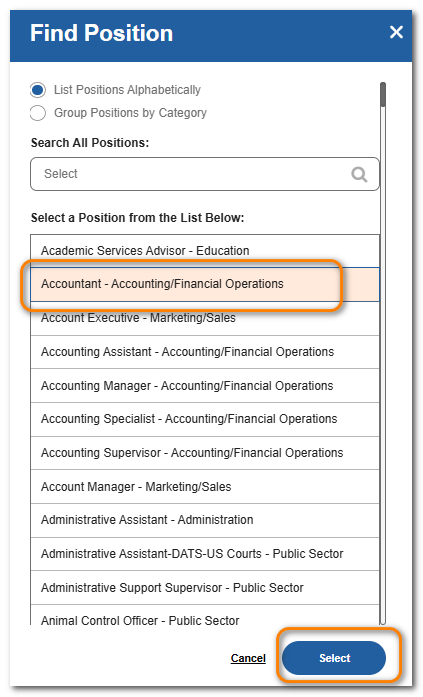
Select the category and available position from the dropdowns. Or click Show All to see all available master positions in the master position list and make your selection. Click Select.
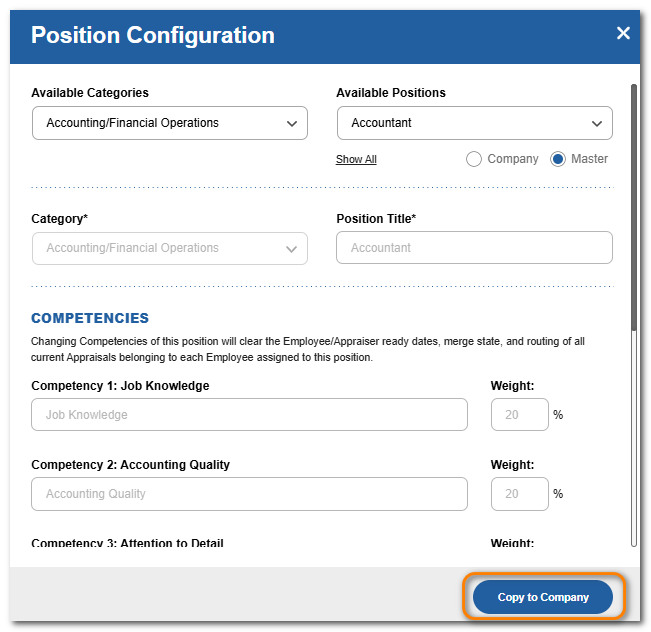
Click Copy to Company.
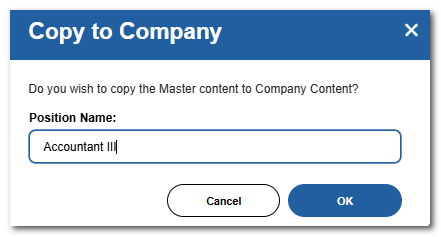
Edit the name if desired. Click OK.
NOTE
You may not have more than one position with the same name, located in the same category. Either rename one of the positions or assign one to a different category.
Select the category and position just copied.
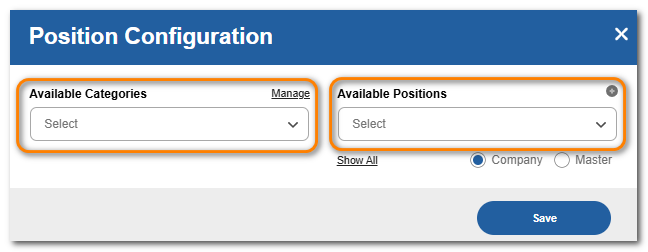
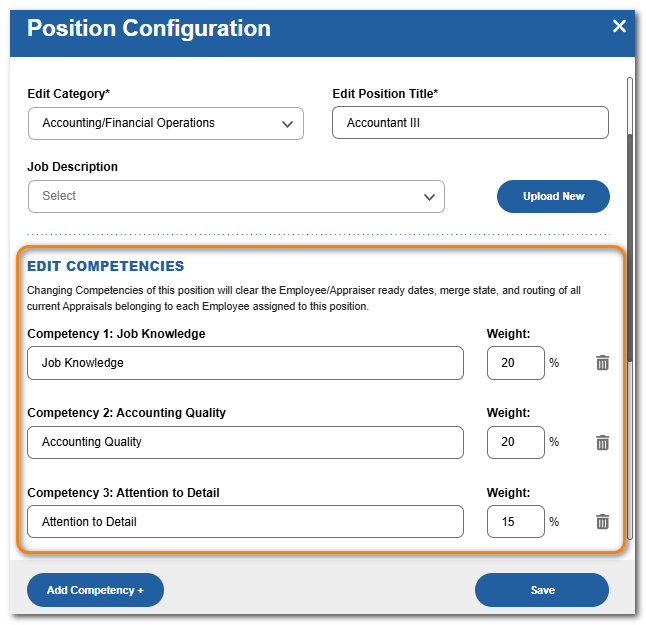
Review the default assigned competencies and weights and customize as desired.
To remove a competency, click the trash can icon. Click OK.
To adjust a weight, edit the weight field. If desired, click Divide Weights Evenly at the bottom of the screen.
NOTE
Any appraisal using this position will not be able to be completed if the assigned competencies do not total 100%.
To Add a new Competency to the Position
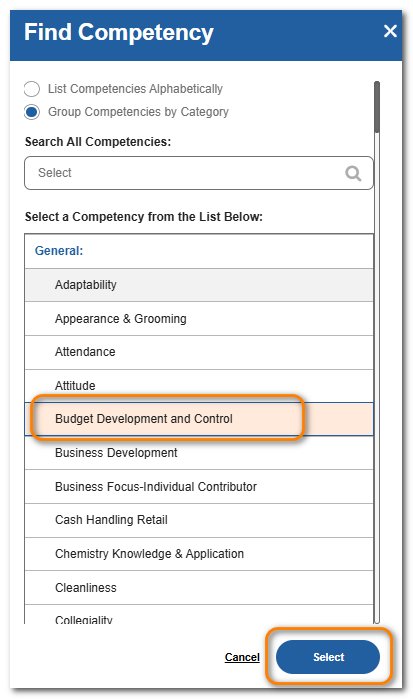
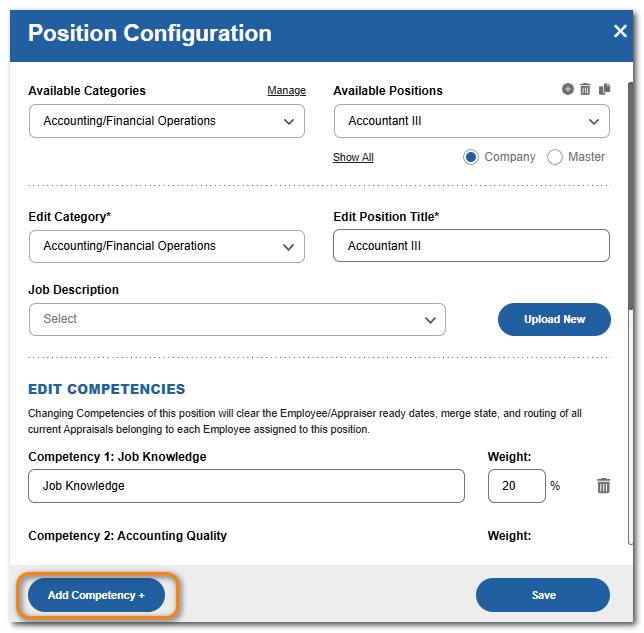
Click Add Competency+.
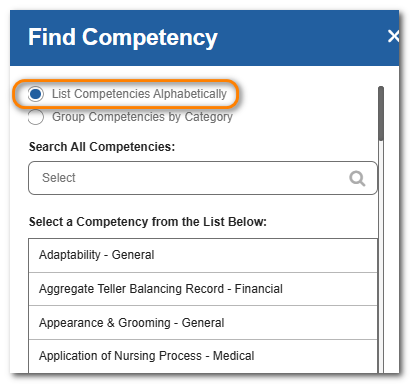
You can view the list of available competencies alphabetically by name.
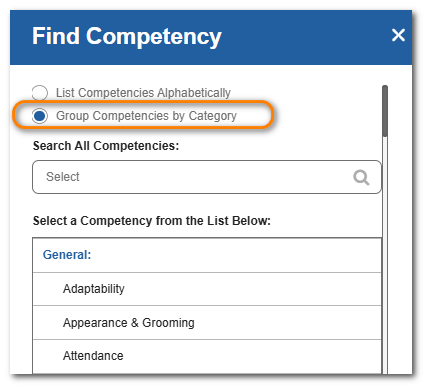
You can view the list of available competencies by the category they are assigned to.
Click the competency from the list and click Select. Set a weight. When all customization is complete, click Save.