![HRPS Logo1.png]](https://knowledgebase.hrperformancesolutions.net/hs-fs/hubfs/HRPS%20Logo1.png?height=50&name=HRPS%20Logo1.png)
Click this link for a full walk-through of the Merit Matrix.
NOTE
Salary information must first be entered for users on their Employee Data screen. Also, perform tasks outlined in the following articles before attempting to calculate merit increases:
- Activating the Merit Increase Function
- Customizing the Merit Matrix
Calculating Merit Increases
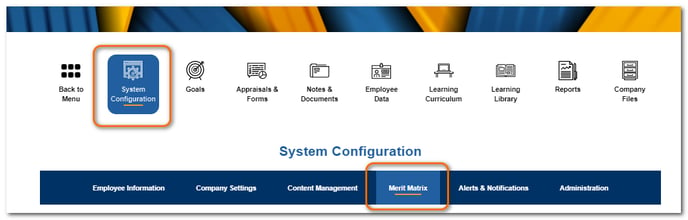
Click System Configuration then Merit Matrix.
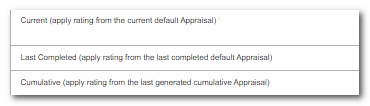
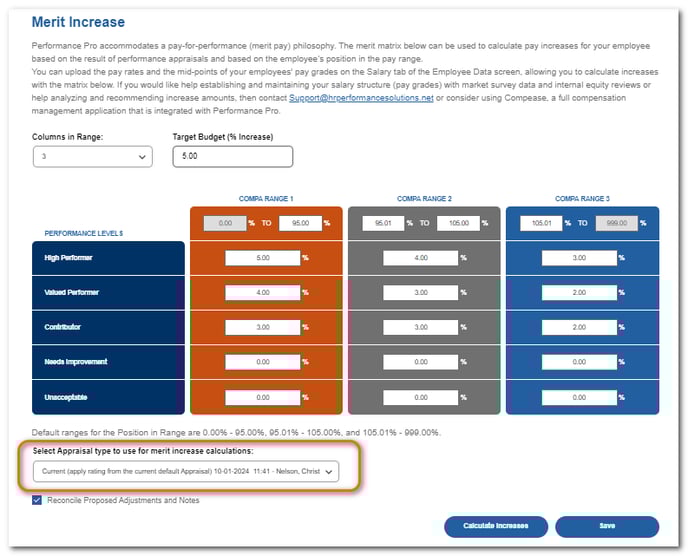
Select the appraisal type to base the merit calculations on. Choices are: current, last completed (last appraisal that was clicked complete), or cumulative.
NOTE
The Reconcile Proposed Adjustments and Notes checkbox will be selected by default. If unchecked, any existing proposed adjustments and notes entered by appraisers are removed each time the Administrative User calculates increases.
CAUTION
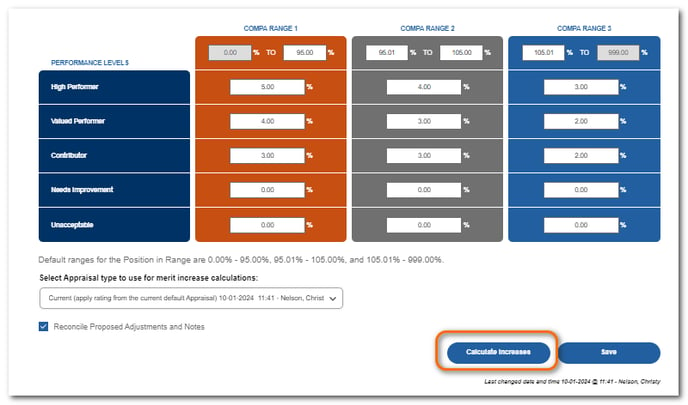
When the Calculate Increases button is clicked, it will replace any previously generated increase calculations with the newly-generated increase calculations. Only the most recently-generated calculations will display on the View & Adjust Merit screen. If you wish to save the last calculation, you should export it (click Export Results) from the View & Adjust Merit screen before calculating new increases.
Click Calculate Increases.
Click Save.
Performance Pro will make increase calculations based on salary, performance level, and compa-ratio. Calculations will feed to the View & Adjust Merit screen.
NOTE
See the View & Adjust Merit for Appraisers article for information on how to allow appraisers access to the View & Adjust Merit table where they can see and propose adjustments to their direct reports and downline.