![HRPS Logo1.png]](https://knowledgebase.hrperformancesolutions.net/hs-fs/hubfs/HRPS%20Logo1.png?height=50&name=HRPS%20Logo1.png)
To Activate Concurrent Appraisals
Click System Configuration then Company Settings.
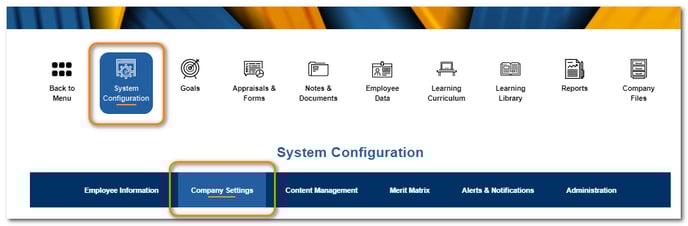
From the Advanced Features area, check Concurrent Appraisals.
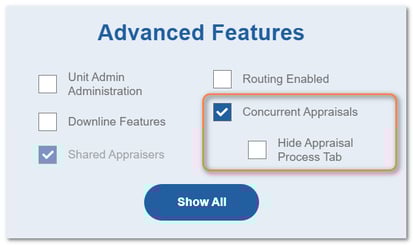
Click Hide Appraisal Process Tab if you do not want managers to be able to assign concurrent appraisals, previously created by Administrators, to employees. If you do not check this, managers will be able to assign concurrent appraisals from the Add New + button on the Current Appraisals & Forms screen.
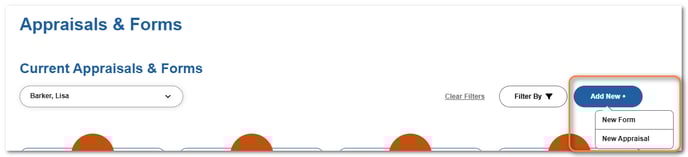
Click Save.
Create a Concurrent Appraisal Process
Click System Configuration then Content Management.
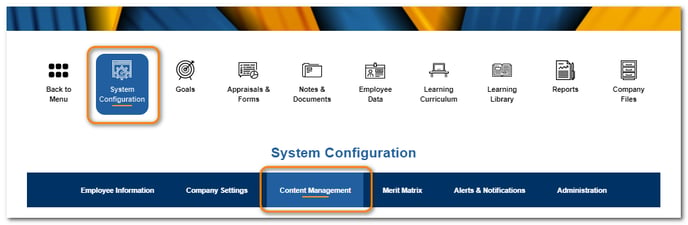
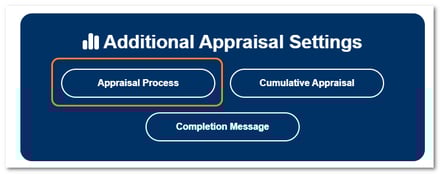
From the Additional Appraisal Settings area, click Appraisal Process.
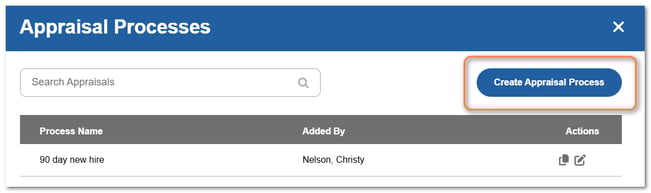
Click Create Appraisal Process.
Enter a name for the appraisal process in the Name field and weights for the competency and goal sections.
TIP
Ensure the name adequately describes the appraisal since it will appear on the appraisal card, in email notifications, pop-up messages, reports, and screens.
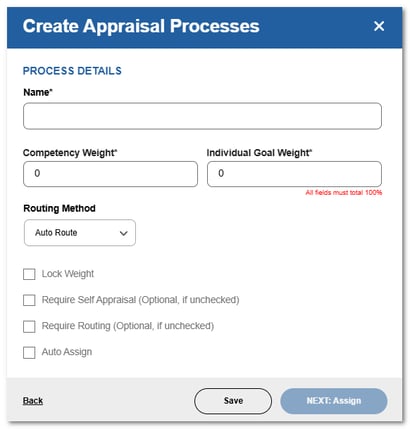
Click Lock Weight if you don’t want appraisers to be able to change the set weights.
Click Require Self-Appraisal if you want self-appraisals required and not optional for this type of appraisal.
Click Require Routing if you want routing required and not optional for this type of appraisal.
Click Save.
See the "Auto Assigning Concurrent Appraisals" article for details on how to use the auto assignment feature.
TIP
When using concurrent appraisals, there will potentially be more than one appraisal open at a time for employees. For this reason, you may want to customize the name of the default (cycling) appraisal from System Configuration > Company Settings > Custom Terms > Terminology. With no customization, it will be named “default.”