![HRPS Logo1.png]](https://knowledgebase.hrperformancesolutions.net/hs-fs/hubfs/HRPS%20Logo1.png?height=50&name=HRPS%20Logo1.png)
Logged in as an appraiser, click Appraisals & Forms.

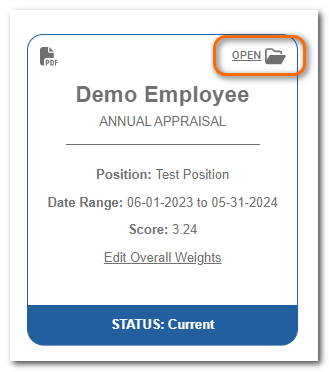
To start or continue the appraisal, click Open on the appraisal card.
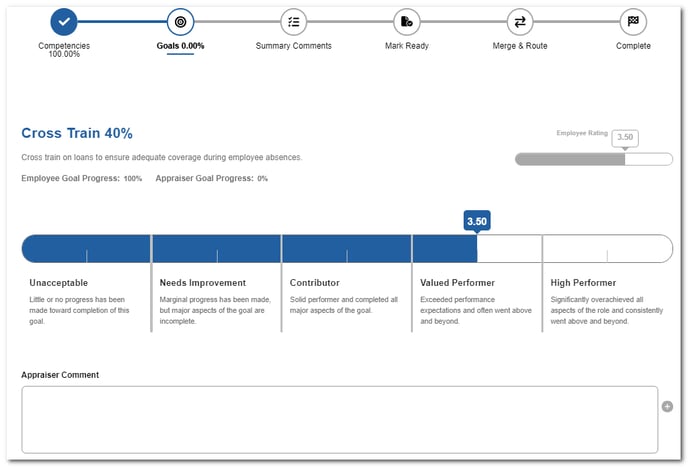
Click Goals.

The goal page includes:
- goal name
- goal weight
- description
- score bar
- performance level descriptions
Click the score bar to rate the item.
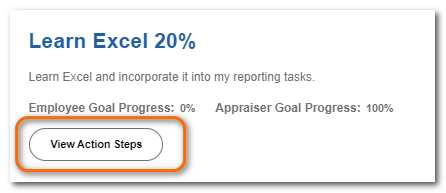
If there are action steps assigned to a goal, view those by clicking View Action Steps.
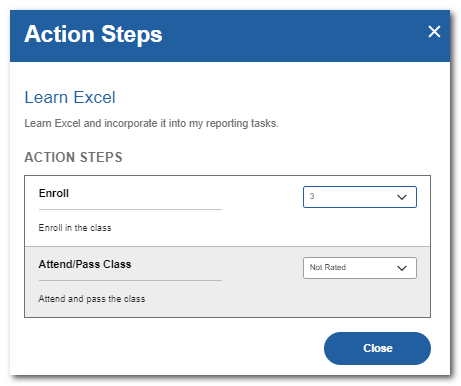
If your company requires each action step to be rated you, will see rating dropdowns. Give each action step a score and then click Close. The ratings will combine to assign a score for that goal. If your company settings allow, you can edit this score.
Note
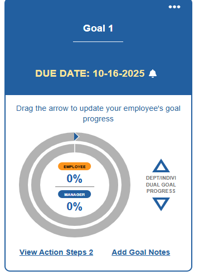
If your company includes Goal Progress in the appraisal, a section will appear on the Current Goals screen where both you and the employee can independently mark the progress. Use the up/down arrows or click the outer circle to adjust the percentage complete.
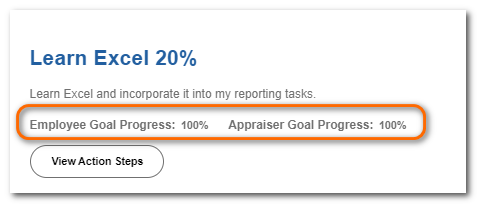
Goal progress will display on the evaluation screen as shown here:
Add comments (if desired or required) in the Appraiser Comment box.
Scroll down to rate the next goal.
When all goals are rated, click Next to move to the next area of the appraisal.
Tip
If the employee has rated this goal in their self-appraisal, their score will appear in the Employee Rating bar and comments in the Employee Comment box (depending on company settings.)