![HRPS Logo1.png]](https://knowledgebase.hrperformancesolutions.net/hs-fs/hubfs/HRPS%20Logo1.png?height=50&name=HRPS%20Logo1.png)
NOTE
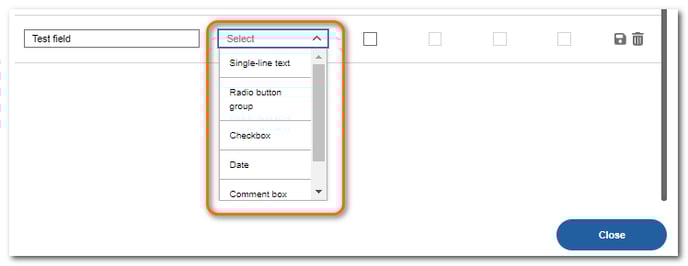
We offer a variety of ways you can collect feedback in summary comments including:
- comment box
- single-line text
- drop-down menu
- radio-button group (multiple choice)
- checkbox
- date field
Editing Existing Fields
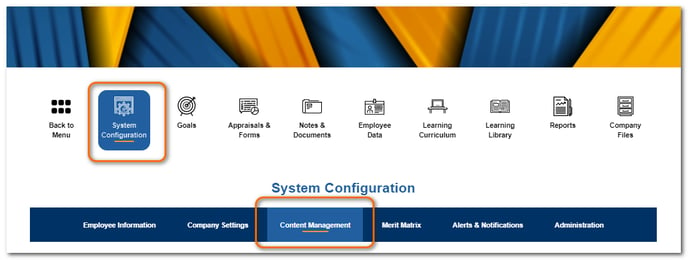
Click System Configuration then click Content Management.
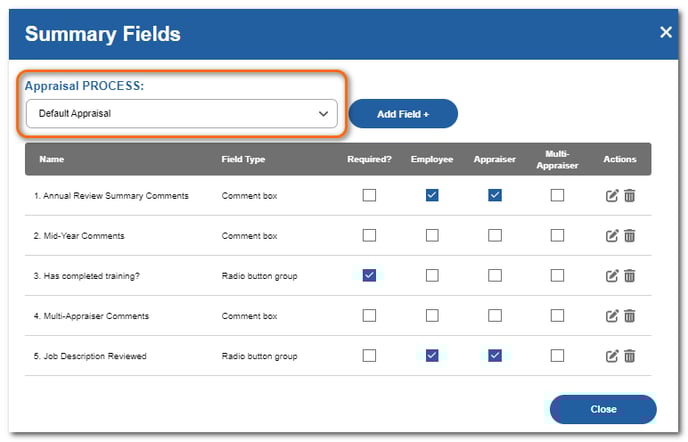
From the Appraisal Content section, click Summary Fields.

Choose the type of appraisal to customize. Existing fields will display.
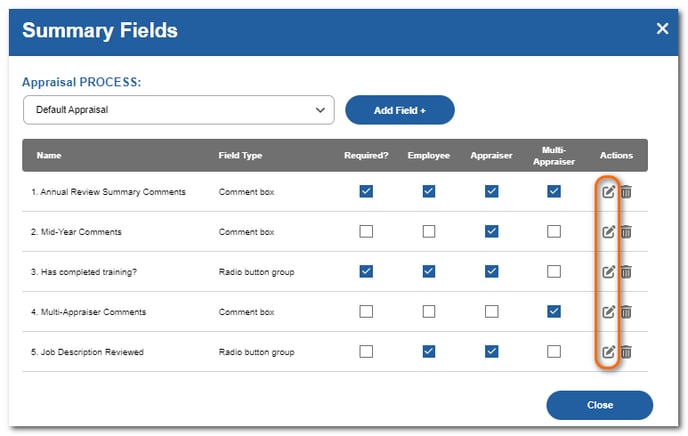
To edit a field, click the edit icon beside the field.
Check the Employee, Appraiser, or Multi-Appraiser boxes depending on which role you want to complete the field.
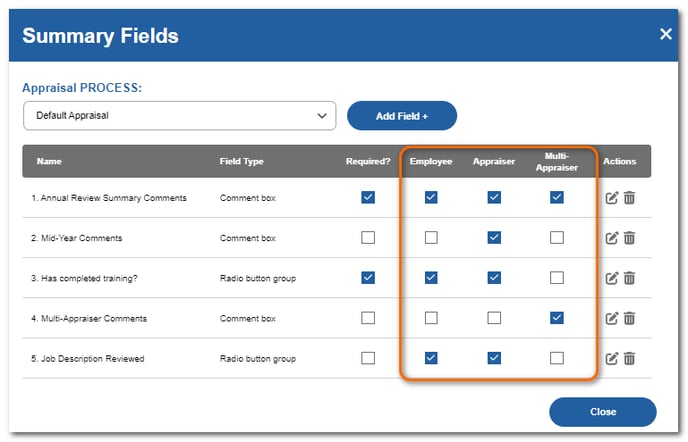
Click the Required? box if you want to make input into this field a requirement. If checked, users will not be able to mark the appraisal ready until the field is completed.
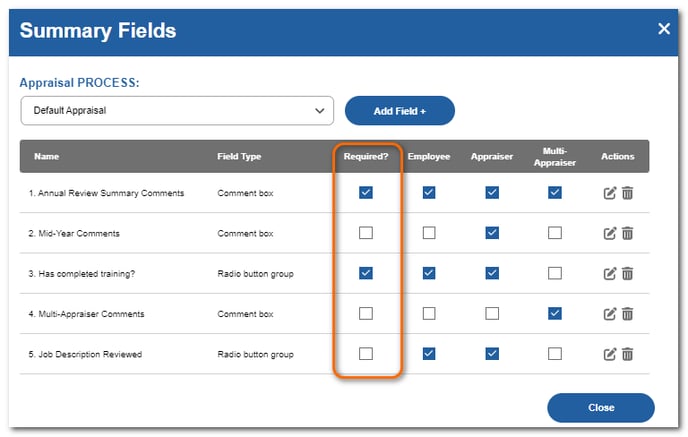
When changes are finished, click Close.
Adding a New Summary Field
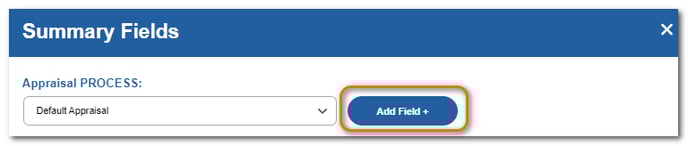
Choose the type of appraisal to add the field to. Click Add Field.
Enter the name of the field.
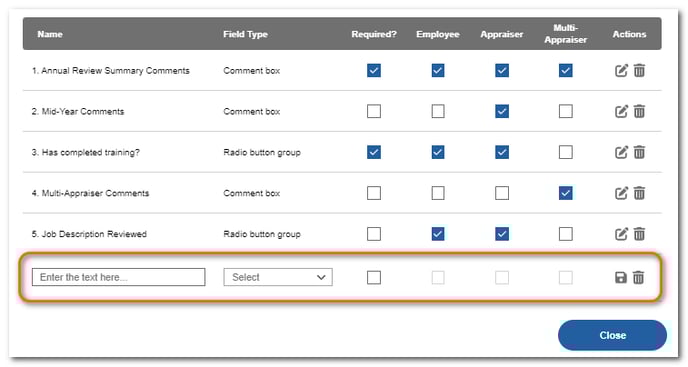
From the Field Type dropdown, choose the type of field to add.
Enter the field information. For drop-down group or radio button group, enter the first choice then click Add Option + to add more choices. Click the Save icon.

Click the Required? option if desired and the roles the field applies to. Click Save.
NOTE
It is important to note that the newly created question will NOT appear on any appraisals until you place checkmarks in the role boxes to denote who should be responding to the question.