![HRPS Logo1.png]](https://knowledgebase.hrperformancesolutions.net/hs-fs/hubfs/HRPS%20Logo1.png?height=50&name=HRPS%20Logo1.png)
NOTE
If the appraisal is only partially filled in by the assigned appraiser, you will not be able to complete the appraisal. It is recommended that you contact Product Support to review your settings and the current state of the appraisal in order to suggest a proper course of action.
Step 1: Mark Ready
If all required fields in the appraisal have been satisfied (scores given, comments made), appraisers (or the Administrator) may mark Ready to indicate they are done with their portion of the appraisal under Appraisals and Forms> Select the appraisal> Select Mark Ready> Scroll to the bottom> Select Mark Ready for Meeting.
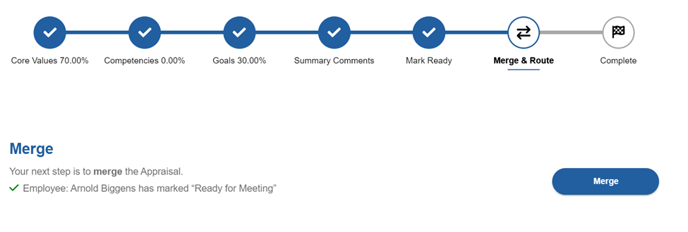
Step 2: Merge
Once all required parties have marked Ready, the appraiser (or Administrator) merges the feedback into one appraisal document.
NOTE
This step, Merge, is not available when the self-appraisal feature has been disabled.
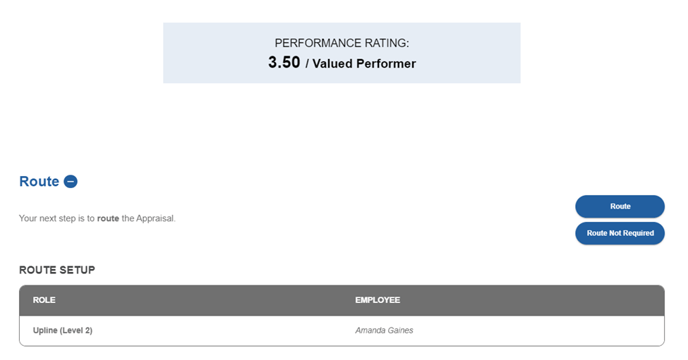
Step 3: Route
Appraisers (or Administrator) may route the document to managers above them or to system administrators for review and approval.
NOTE
Administrators can bypass routing if desired and appropriate by clicking Route Not Required.
Step 4: Complete
Marking the appraisal Complete will transition the appraisal document to a read-only, static document that can be viewed in Performance History. Immediately, a new current appraisal will load for the coming year and any future goals will become current goals.