![HRPS Logo1.png]](https://knowledgebase.hrperformancesolutions.net/hs-fs/hubfs/HRPS%20Logo1.png?height=50&name=HRPS%20Logo1.png)
To upload data for a completed course:
- Make sure your spreadsheet is saved as an Excel [.xls] document
- Navigate to Schedules, using the Admin Menu
- Select Import from the function menu, at the top of the screen
- The HR Sync Wizard screen will open that gives you all the required fields that should be on your spreadsheet to complete the import.
- After selecting Next, choose the file from your computer and use Upload to start the import process.
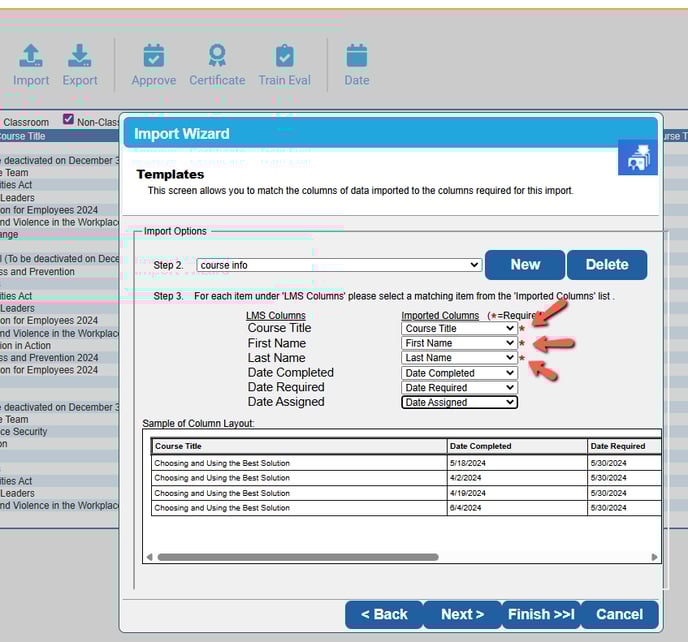
- Click New to create an upload template.
- Click in the box next to Step 2 and name the template and then click Ok.
- Select the data sets from your spreadsheet to match the LMS Columns. The columns with asterisks are required and the others are recommended.
- Click Next to continue
- The Import Options screen will open and allow you to select template options. Click Next or, if you are finished, click Finish.
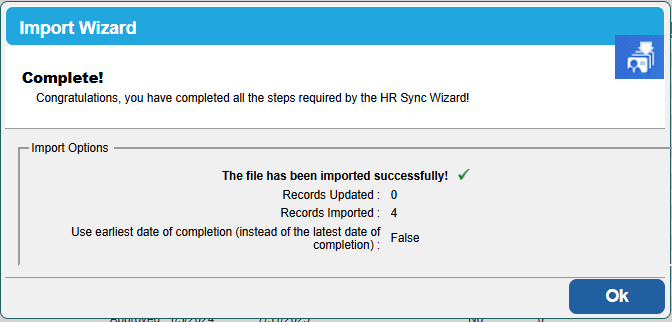
If the import is successful, a congratulations page will open and you can click OK to close out of the import.