![HRPS Logo1.png]](https://knowledgebase.hrperformancesolutions.net/hs-fs/hubfs/HRPS%20Logo1.png?height=50&name=HRPS%20Logo1.png)
-
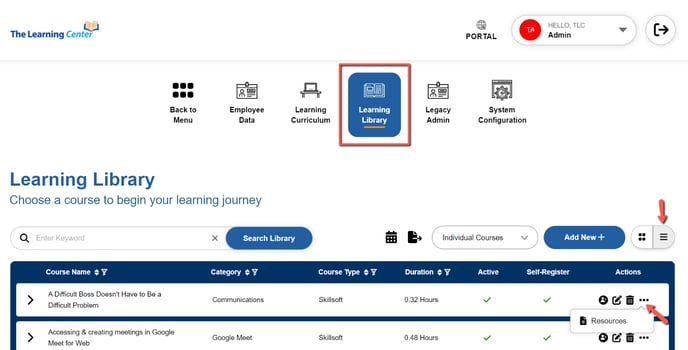
Select Learning Library from the Admin menu.
-
To add a Resource, change to the list view, click the Ellipsis and select Resources under Actions for the course you want to add your document to.
- When the Course Resources screen appears Click Add New +.
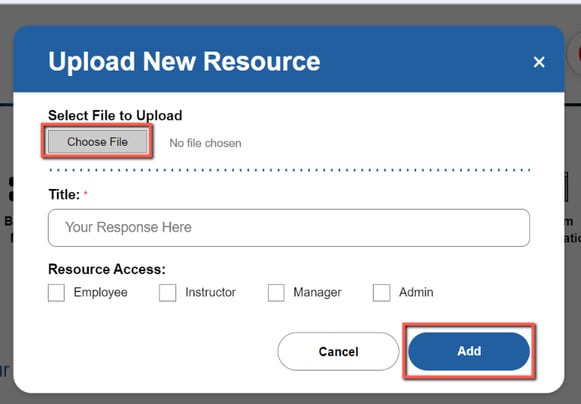
- Choose your file for upload, add the Title of your document, and then select who you would like to allow access to the Resource. Next, click Add.
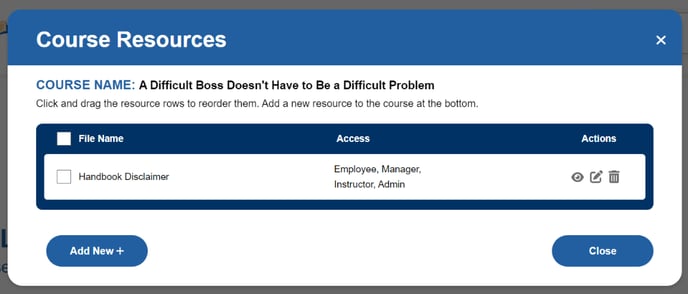
- If you have any additional documents to add, select Add New+. You may add more than one Resource to a single course. After adding, click Close and the Resources will save to the Course.