![HRPS Logo1.png]](https://knowledgebase.hrperformancesolutions.net/hs-fs/hubfs/HRPS%20Logo1.png?height=50&name=HRPS%20Logo1.png)
Exporting a Basic Report:
-
Select Reports from the Admin menu. The Basic Reports screen appears.

-
Select the report from the TLC Basic Reports drop-down list. The report data appears.
-
To reduce the amount of data shown, click the Filters checkbox, then specify the filter column and criteria (i.e., the choices in the filter column drop-down list).
-
Click Export on the toolbar.
-
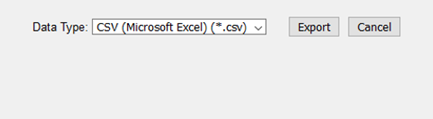
When the Data Type screen appears, click Export.
Exporting an Advanced Report:
-
Select Reports from the Admin menu. The Basic Reports screen appears.

-
Click the arrow next to Basic Reports, then select Advanced Reports.

-
Select the report from the TLC Advanced Reports drop-down list. Report data appears.
-
Select the information you want to appear on the report.
-
Click View Report.
-
Click the Export Icon and select your preferred report format from the drop-down.
Note: To open the file, you must have an application on your computer capable of opening files in the format you choose (e.g., Microsoft Excel for .csv files).