![HRPS Logo1.png]](https://knowledgebase.hrperformancesolutions.net/hs-fs/hubfs/HRPS%20Logo1.png?height=50&name=HRPS%20Logo1.png)
E-signing the Appraisal
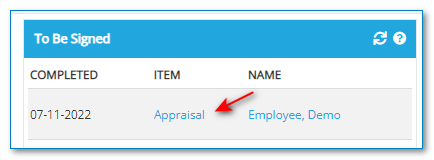
- Logged in as an Employee, on the homepage, in the To Be Signed widget, click the appraisal link.
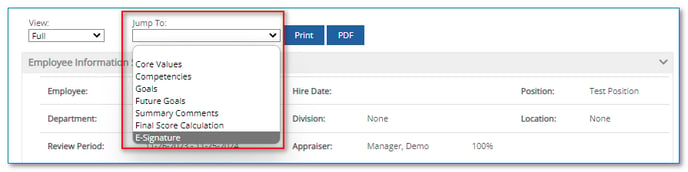
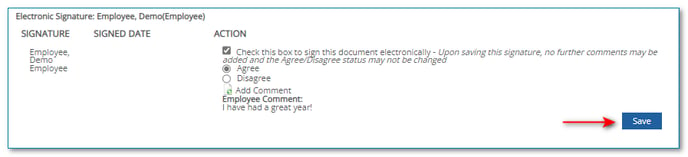
- That will take you to a new page to view the appraisal. To skip to the E-Signature section, from the Jump To dropdown box, select E-Signature. Under the Signature heading at the bottom of the appraisal, click the Check this box to sign this document electronically checkbox.

- Agree and Disagree radio buttons will appear.
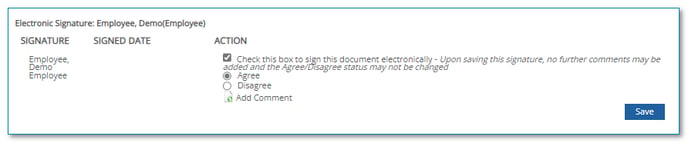
- Click Agree or Disagree.
- If you would like to add a comment, click Add Comment link, enter your comments then click Save.
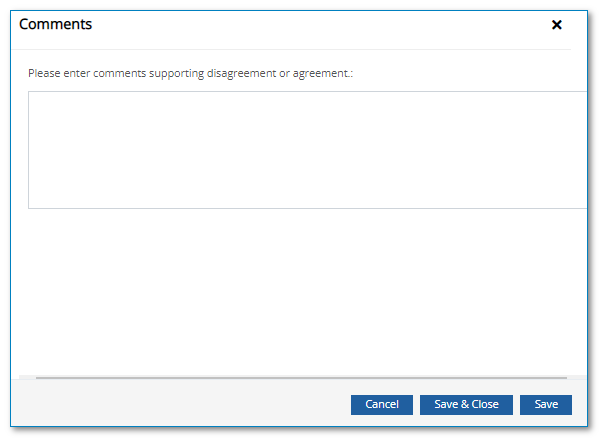
- Click Save & Close to save your changes. Once saved, your appraiser will receive an email notifying them of the comment.
- Click Save.
- Please note, if you mark Agree, comments are optional. If you mark, Disagree, you will be required to add a comment before you can complete the signature.