![HRPS Logo1.png]](https://knowledgebase.hrperformancesolutions.net/hs-fs/hubfs/HRPS%20Logo1.png?height=50&name=HRPS%20Logo1.png)
Please note: Once a Branch is deleted the action cannot be undone.
-
Select Employees from the Admin menu.
-
Click the arrow next to Employees, then select Branches.
-
Locate the branch you want to delete, then do one of the following:
-
To delete a single branch, select the branch then click Delete on the toolbar.
-
To delete multiple branches, select the Multi Delete checkbox, select the branches then click Delete. The multiple branch records will be highlighted.
-
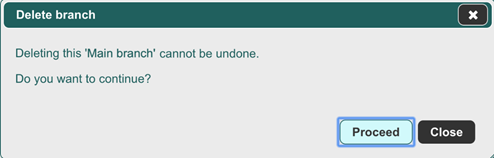
When a message appears asking you to confirm the deletion, click Proceed to delete the branches, or Close if you have decided not to delete.
-
-
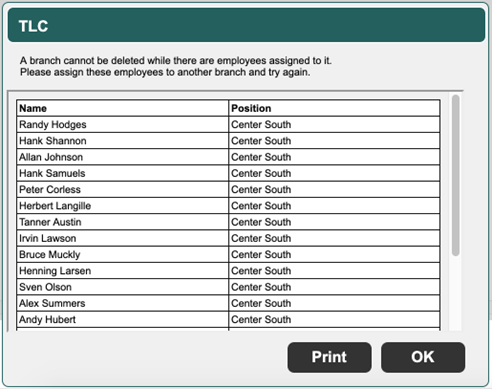
If there are team members assigned to the branch, you will see a different message indicating that there are employees assigned to the branch you want to delete.
-
You must first reassign those team members to another branch before the original branch can be deleted. To do this, you must edit each employee’s profile and select another branch.