![HRPS Logo1.png]](https://knowledgebase.hrperformancesolutions.net/hs-fs/hubfs/HRPS%20Logo1.png?height=50&name=HRPS%20Logo1.png)
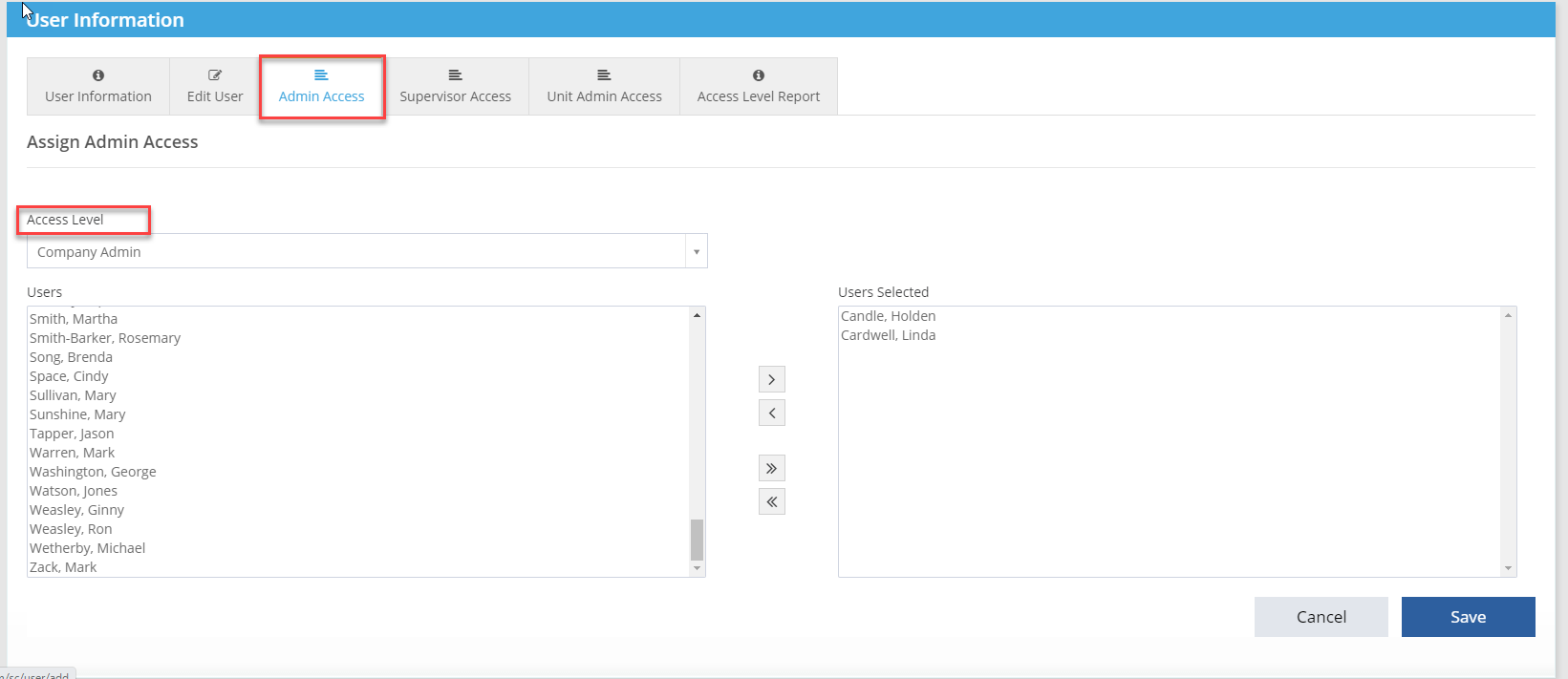
User Security --> User Information --> Admin Access:
- Select the access level from the drop-down menu.
-
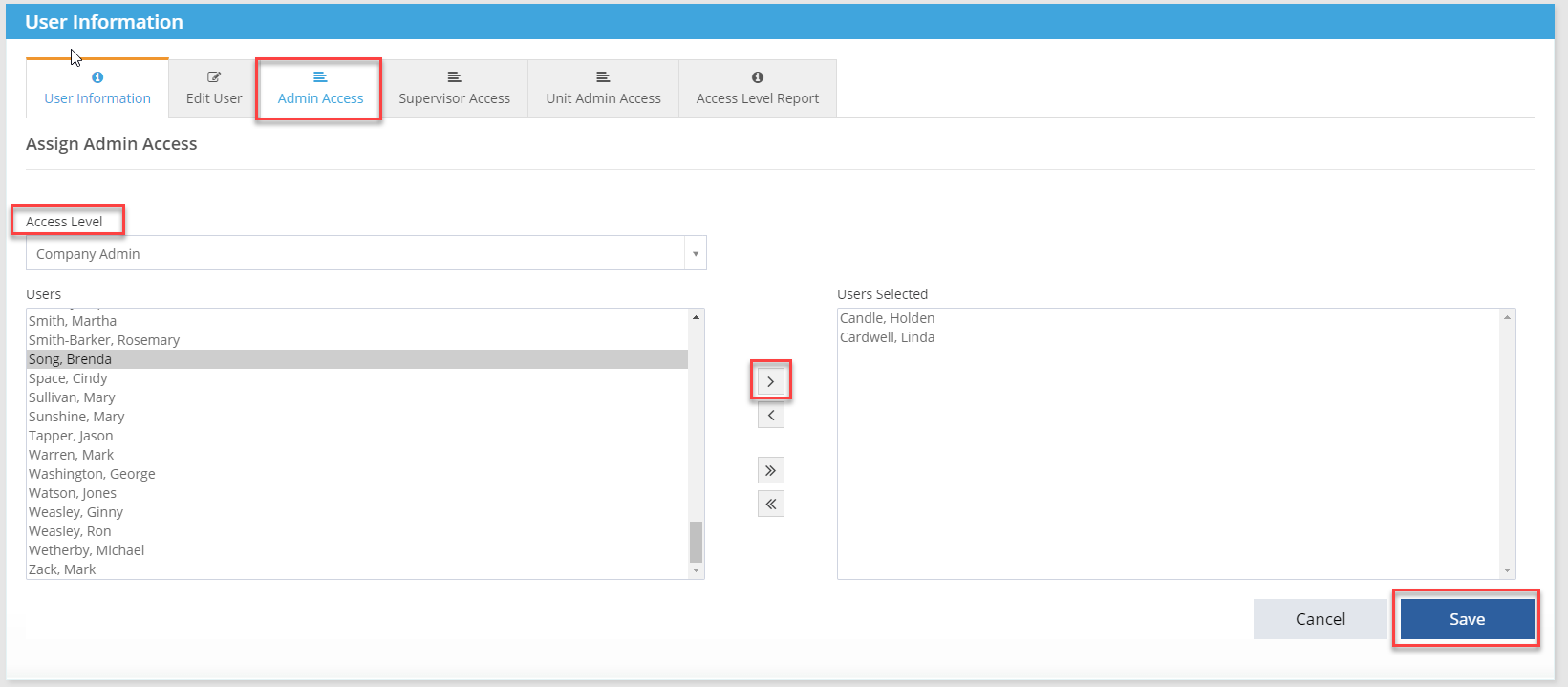
Select the employee.
-
Click single arrow pointing right to move employee to User Selected.
-
Click Save icon.
-
Once access is assigned, provide employee with the URL, their username and temporary password. For instructions on resetting a password, see reset password article.
- Compease users can be assigned multiple access levels. Follow the same steps to assign another access level such as Supervisor or Unit Admin.
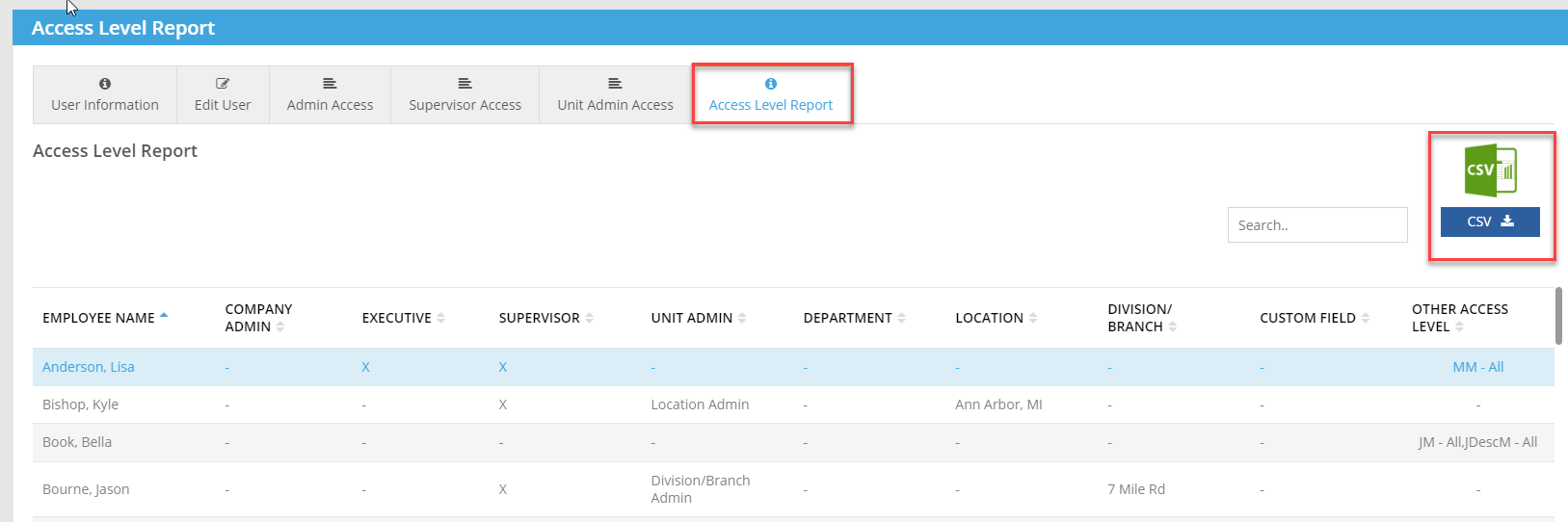
- To view who has access to Compease and what access level the users have been assigned, click on the Access Level Report tab.
See below for a video of these instructions.