![HRPS Logo1.png]](https://knowledgebase.hrperformancesolutions.net/hs-fs/hubfs/HRPS%20Logo1.png?height=50&name=HRPS%20Logo1.png)
-
Select Employees from the Admin menu.
-
Click the arrow to open the folder next to Employees, then select Groups. The list of Groups records appears.
-
To add a new group record, click New.
-
To edit an existing group record, select the group you want to change then click Edit.
-
The Group screen appears.
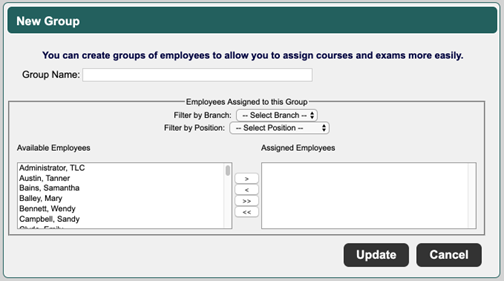
Complete or edit the following fields:
-
Group Name – Enter a short, descriptive name for the group such as a branch name, department name or a specific job title (New Hire, 2023 Compliance, etc.).
-
Filter by Branch, Filter by Position – Select one or more branches and/or positions to filter the list of employees displayed in the Available Employees pane. To select multiple branches or positions, press CTRL, then select multiple items.
-
Select and move employees that you want to assign to this group from the Available Employees pane to the Assigned Employees pane.
-
Click Update to save the new group.