![HRPS Logo1.png]](https://knowledgebase.hrperformancesolutions.net/hs-fs/hubfs/HRPS%20Logo1.png?height=50&name=HRPS%20Logo1.png)
To add a new branch or edit an existing one:
-
Select Employees from the Admin menu.
-
Click the arrow next to Employees, then select Branches.
-
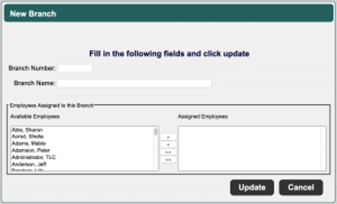
To add a new branch, click Add. To edit an existing branch, select the record, then click Edit. The New Branch or Edit Branch screen appears.
-
Complete or edit the following fields:
-
Branch Number – Enter the branch number.
-
Branch Name – Enter a name that describes the location or nature of this branch.
-
Employees Assigned to this Branch – Select and move employees assigned to this branch from the Available Employees pane to the Assigned Employees pane.
-
Click Update to save the new branch or to save your changes to a branch record.