![HRPS Logo1.png]](https://knowledgebase.hrperformancesolutions.net/hs-fs/hubfs/HRPS%20Logo1.png?height=50&name=HRPS%20Logo1.png)
To Add a Company Unit
Click System Configuration then Company Settings.
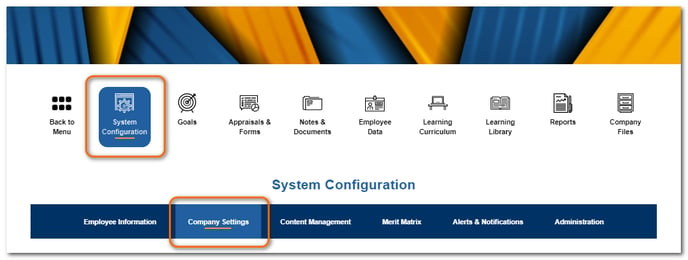
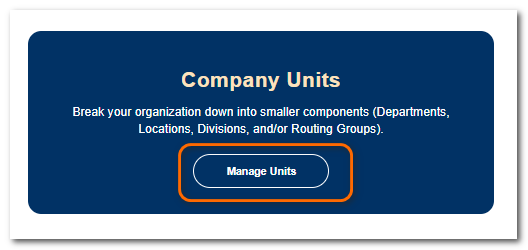
Scroll to the Company Units section. Click Manage Units.
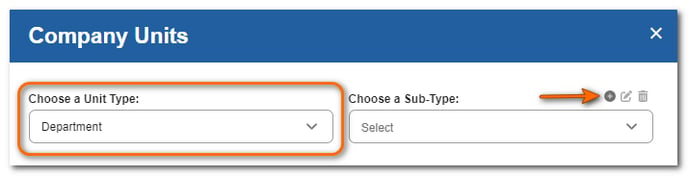
Choose a Unit Type from the dropdown. Click the + sign.
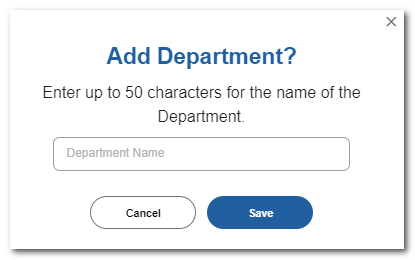
Enter a name and click Save.
Assign or Remove Users from a Company Unit
Choose a Unit Type and Sub-Type from the dropdowns.
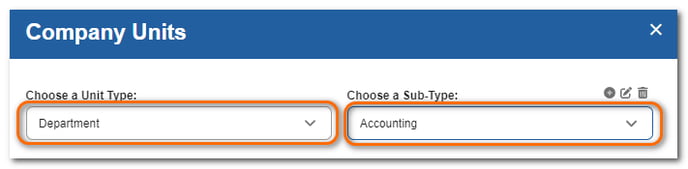
Select the employee(s) you wish to assign to the unit from the list on the left. Click the single right arrow > to move the employee(s) to the Employees Selected list.
NOTE
To remove employees from a unit, select the employee(s) from the list on the right. Click the single left arrow < to move them out of the unit.
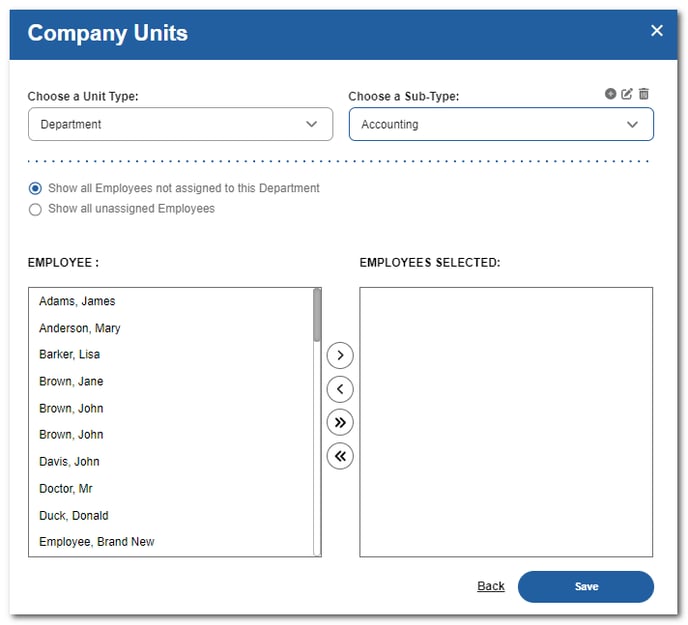
Click Save.
To Edit a Company Unit's Name
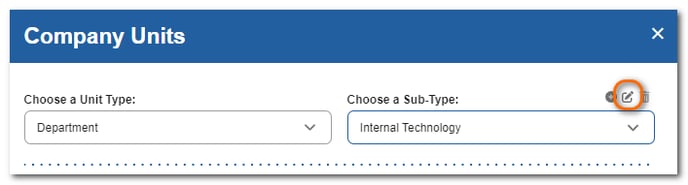
Choose a Unit Type and Sub-Type from the dropdowns. Click the edit icon.
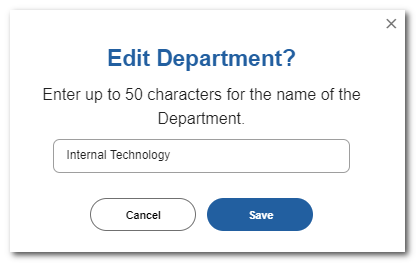
Edit the name. Click Save.
To Delete a Company Unit
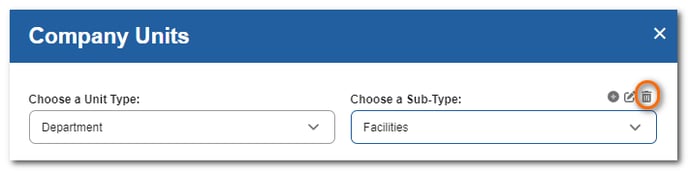
Choose a Unit Type and Sub-Type from the dropdowns. Click the delete icon.
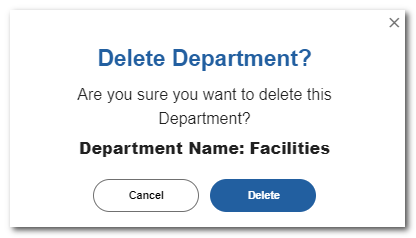
Click Delete to confirm the deletion.
CAUTION
Before deleting a company unit, remove all users. Suppose you attempt to delete a company unit that has employees currently assigned to it. In that case, you will see a message stating that all active employees must be removed from the unit before it can be deleted.