![HRPS Logo1.png]](https://knowledgebase.hrperformancesolutions.net/hs-fs/hubfs/HRPS%20Logo1.png?height=50&name=HRPS%20Logo1.png)
-
Open Chrome.
-
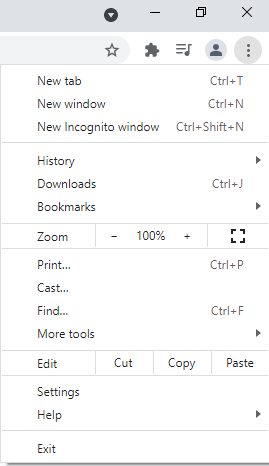
Click the three dots icon in the top right-hand corner of the browser and select Settings.
-
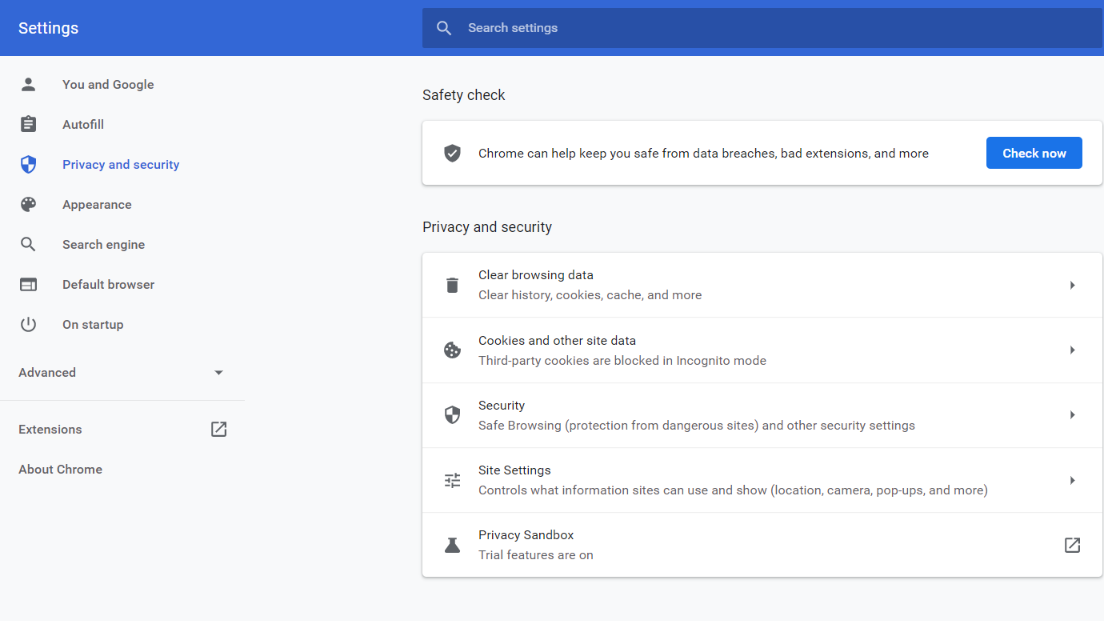
On the left hand menu select Privacy and security.
-
Select and open the Site Settings section.
-
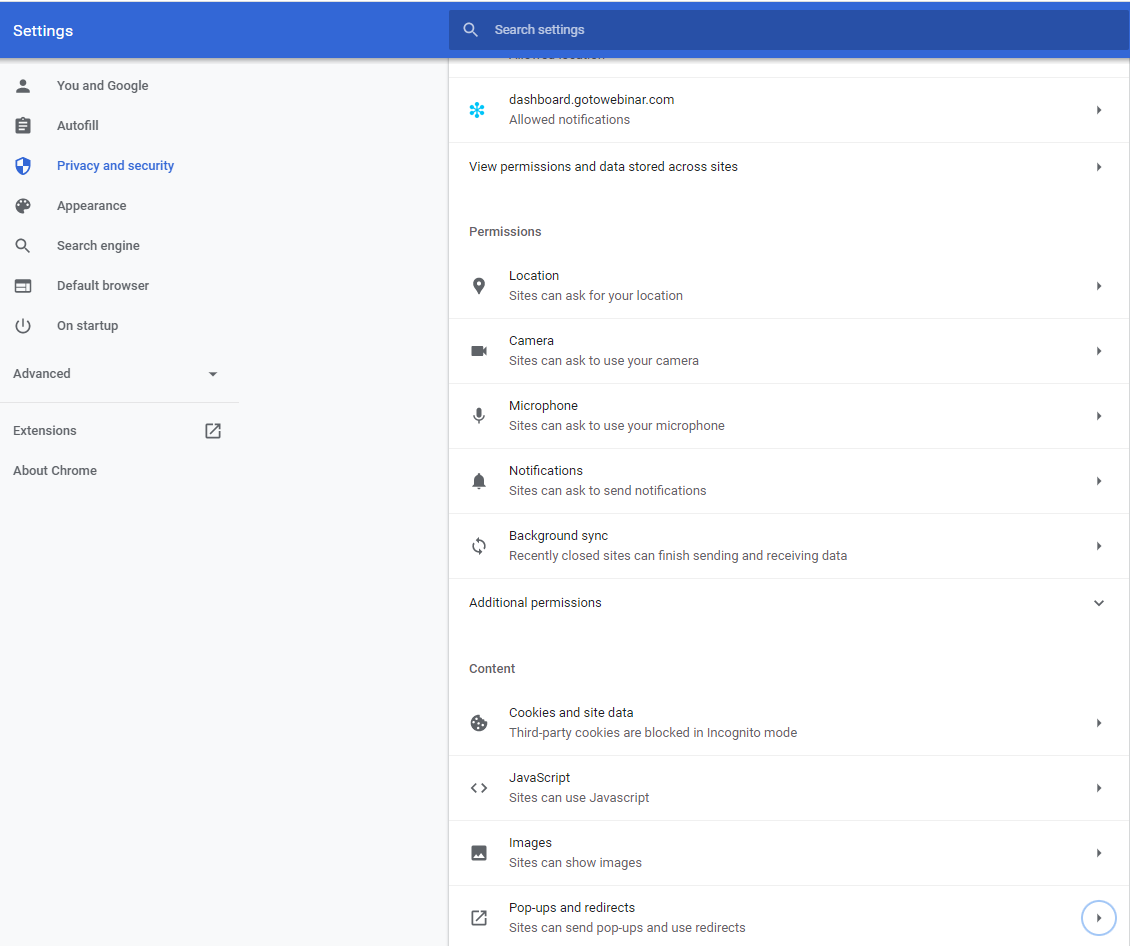
In the Site Setting section, open the Pop-Ups and redirects.
-
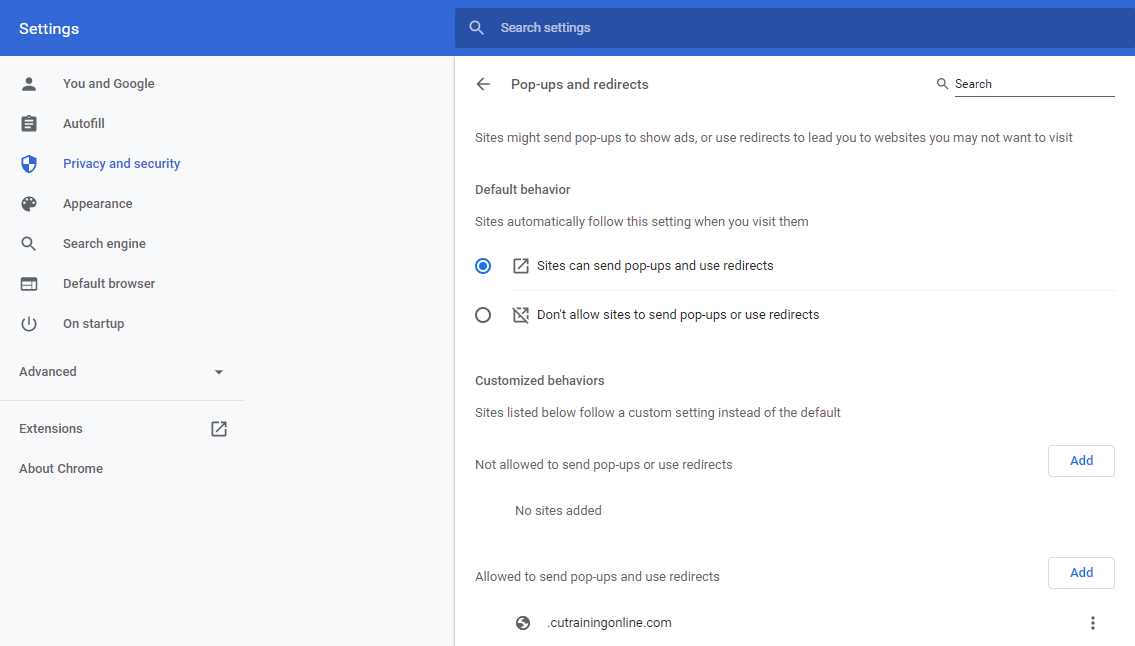
When the Pop-ups and redirects screen appears, do one of the following:
-
To allow all sites to show pop-ups, select Sites can send pop ups and use redirects.
AND/OR
-
To allow pop-ups just for CU Training’s applications, do the following:
-
In the Allowed to send pop-ups and use redirects section, click the Add button.
-
Enter *.cutrainingonline.com in the Site field, then click Add.
-
If your organization uses the Skillsoft bundle of business courses, repeat the above step to also allow *.skillport.com and *.skillwsa.com.